---
title: "How to configure an SSL Certificate with Play Framework for https"
date: 2014-01-04T20:23:44+00:00
author: "poornerd"
tags: ["howto", "ssl"]
canonical: https://www.poornerd.com/2014/01/04/how-to-configure-an-ssl-certificate-with-play-framework-for-ssl/
source: Raw Markdown twin of the HTML article; content is the original source.
---
[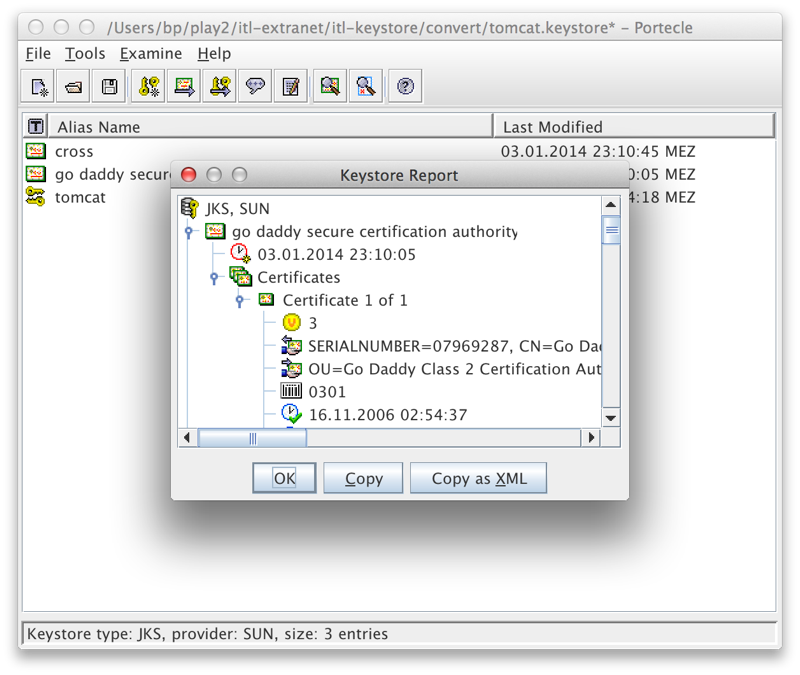 ](https://www.poornerd.com/wp-content/uploads/2014/01/ssl.png)I spent hours trying to get this to work, and in the end, then problem was that I did not generate the CSR (Certificate Request) myself with the keytool.
I kept getting this error when I tried accessing Play with https:
**javax.net.ssl.SSLPeerUnverifiedException: peer not authenticated**
The problem ended up being that the keystore I created and imported the SSL certificate into did not have the public key that was used for the CSR (certificate request).
So here it the quick version of generating an SSL Certificate with godaddy.com and installing it with Play Framework 2.1+.
1. Follow these instructions from godaddy.com to generate the CSR like this:
First generate the key pair like this:
](https://www.poornerd.com/wp-content/uploads/2014/01/ssl.png)I spent hours trying to get this to work, and in the end, then problem was that I did not generate the CSR (Certificate Request) myself with the keytool.
I kept getting this error when I tried accessing Play with https:
**javax.net.ssl.SSLPeerUnverifiedException: peer not authenticated**
The problem ended up being that the keystore I created and imported the SSL certificate into did not have the public key that was used for the CSR (certificate request).
So here it the quick version of generating an SSL Certificate with godaddy.com and installing it with Play Framework 2.1+.
1. Follow these instructions from godaddy.com to generate the CSR like this:
First generate the key pair like this:
keytool -keysize 2048 -genkey -alias tomcat -keyalg RSA -keystore tomcat.keystore
Then generate the CSR:
keytool -certreq -alias tomcat -file csr.txt -keystore tomcat.keystore
2. Use the CSR to apply for certificate
3. Add the Intermediate Certificate Bundle and the Certificate that were generated to your keystore.
**NOTE: make sure this is the same keystore that you generated the private key in, in step 1!**
keytool -import -alias intermed -keystore tomcat.keystore -trustcacerts -file gd_bundle.crt
keytool -import -alias tomcat -keystore tomcat.keystore -trustcacerts -file mycert.crt
(Replace mycert.crt with the file name and location of the new GoDaddy certificate)
4. Finally, following the instructions for configuring https with Play 2.1+ ( http://www.playframework.com/documentation/2.2.1/ConfiguringHttps ) which had already worked great with the self generated key, I created a shell script for starting Play with the correct parameters:
# script for starting play in production with SSL and the keystore
target/start -Dhttps.port=443 -Dhttps.keyStore=/Users/bp/mypath/tomcat.keystore -Dhttps.keyStorePassword=itl80809
Note: you need to do a “play dist” beforehand, so that the current Software is compiled into a distribution in the target subdirectory.