---
title: "Yes, it is now this easy to Dockerize a Play! Framework Application"
date: 2014-10-10T12:01:44+00:00
author: "poornerd"
tags: ["Docker", "PlayFramework"]
canonical: https://www.poornerd.com/2014/10/10/yes-it-is-now-this-easy-to-dockerize-a-play-framework-application/
source: Raw Markdown twin of the HTML article; content is the original source.
---
[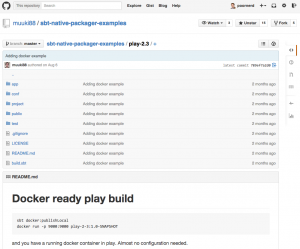 ](https://www.poornerd.com/wp-content/uploads/2014/10/Screen-Shot-2014-10-10-at-13.40.47.png)Do you want to build a dockerized Play! Framework application to deploy on a Docker server?
Nepomuk Seiler actually tweeted about this awhile back, but I didn’t realize until today how easy it was to do.
First off make sure you already have docker running. I am using OSX, so I used boot2docker and followed these instructions. If you don’t always read all the instructions I like do, then check out these two tips for running **boot2docker** on OSX:
* make sure you set the environment variable set like: export DOCKER_HOST=tcp://192.168.59.103:2375
* make sure that once the application is running you access it with the docker IP, and not localhost
Then follow the README.md instructions here: https://github.com/muuki88/sbt-native-packager-examples/tree/master/play-2.3
1. Add the dependencies to your build.sbt
](https://www.poornerd.com/wp-content/uploads/2014/10/Screen-Shot-2014-10-10-at-13.40.47.png)Do you want to build a dockerized Play! Framework application to deploy on a Docker server?
Nepomuk Seiler actually tweeted about this awhile back, but I didn’t realize until today how easy it was to do.
First off make sure you already have docker running. I am using OSX, so I used boot2docker and followed these instructions. If you don’t always read all the instructions I like do, then check out these two tips for running **boot2docker** on OSX:
* make sure you set the environment variable set like: export DOCKER_HOST=tcp://192.168.59.103:2375
* make sure that once the application is running you access it with the docker IP, and not localhost
Then follow the README.md instructions here: https://github.com/muuki88/sbt-native-packager-examples/tree/master/play-2.3
1. Add the dependencies to your build.sbt import NativePackagerKeys._
....
// setting a maintainer which is used for all packaging types</pre>
maintainer:= "Your Name"
// exposing the play ports
dockerExposedPorts in Docker := Seq(9000, 9443)
// run this with: docker run -p 9000:9000 <name>:<version>
2. Then build it: sbt docker:publishLocal
3.
Then run it! (replace the “play-2-3” with your name from the build.sbt, and the “1.0-SNAPSHOT” with your version)
docker run -p 9000:9000 play-2-3:1.0-SNAPSHOT
Once it is running, use the DOCKER_HOST IP to access it like: http://192.168.59.103:9000
I have yet to try it, but I image you can just copy the target/docker to you docker server and run it as well.
I also need to figure out how to run the the Play!Framework with different configuration files.